Particle Sandbox
(Under development)This is a project which I am currently working on. It is being written using the C++ programming language using SDL for windowing and mouse and keyboard events.
Building on the concept of my Particle Engine, this game will contain many new features and capabilities:
- Physics: The game will make use of real physics equations to calculate particle speed and direction.
- Gravitational Bodies: You will be able to place gravitational bodies anywhere you like. These will affect the movement of the particles depending on their masses allowing you to create many interesting effects, such as spiral galaxies.
- Charged Bodies: Similar to gravitational bodies, these will affect particle movement depending on their electrical charge.
- Particle Emitters: You will be able to place a potentially infinite number of these anywhere. These are what you use to create particles.
The game will be focused on customisability and simplicity. Almost everything about the particles will be customisable. All you will have to do is change the setting of the emitter. Likewise, the gravitational and charged bodies will also be almost completely customisable, allowing you to change their size, mass, charge, etc.
I am hoping to keep it as simple and user friendly as possible, minimising the amount of time required to get the desired effect. For example, I hope to be able to use the mouse scroll wheel for changing certain settings of various entities, such as the mass of a gravitational body, or the charge of a charged body when you hover over one.
Particle Engine
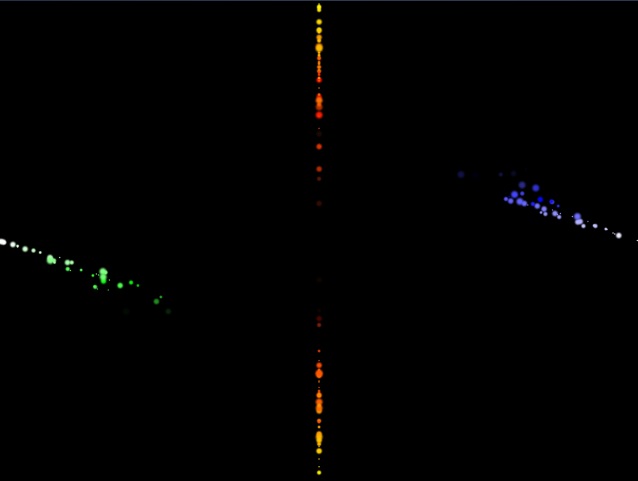
This has been written in the C++ programming language and uses OpenGL to handle the graphics. SDL is used to handle the windowing and keyboard events. This program simply demonstrates some of the capabilities of the engine. The program also makes use of the LoadTGA() function from the NeHe tutorials* for loading the particle texture.
Keyboard Controls:- Press the 'g' key to delete or re-initialise the green particles.
- Press 'Esc' to quit.
No known bugs.
Download:- Windows XP/Vista/7/8 RP
- Linux (compiled and tested in Ubuntu 11.04)
The Linux build of the program requires that you have SDL and OpenGL installed.
Updates:- 9 June 2012: Changed how particles are rendered. Removed OpenGL DLLs from installer. (Windows only).
- 13 April 2012: Fixed green particles not re-initialising when pressing the 'g' key after they have been deleted.
- 12 April 2012: Fixed program crashing when pressing the 'g' key in Linux. Fixed a memory leak.
- 10 April 2012: Got icon to display on main executable. Changed program information to show program description, version number, etc. (Windows only).
- 9 April 2012: Fixed particles not coming out in a continuous stream.
- 12 November 2011: Changed program icons.
- 11 November 2011: Added a frame rate limiter. The Windows version now has an installer.
- 9 November 2011: Fixed 'Entry Point Not Found Error' in XP.
- 25 September 2011: Added msvcr71.dll to the Windows package.
Pong
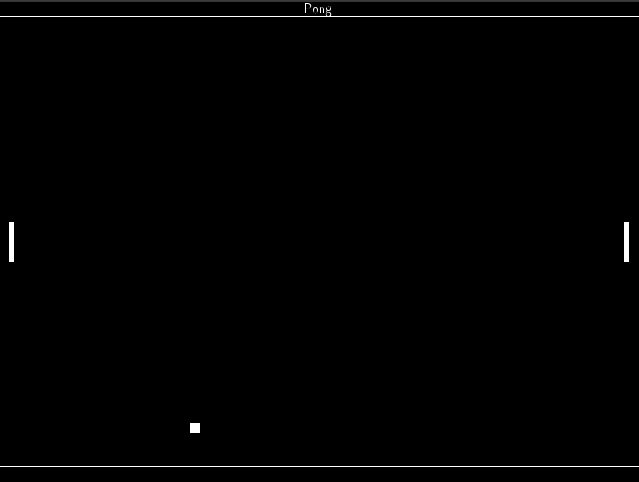
This has been written using C++ along with OpenGL for the main graphics and SDL for the windowing and keyboard events. It also makes use of the SDL extension libraries 'SDL_ttf' and 'SDL_image'.
Keyboard Controls:- Press the 'Enter' key to start the game or reset the game if the ball has left the game window.
- Use the 'w' and 's' keys to move the left paddle up and down.
- Use the up and down arrow keys to move the right paddle up and down.
- The 'Esc' key will quit the game.
- The areas where there should be text may appear as white blocks. Possibly a driver issue.
- The Linux version may freeze when trying to quit the game.
- Windows XP/Vista/7
- Linux (compiled and tested in Ubuntu 11.04)
The Linux build of Pong requires you to have SDL and OpenGL installed. It also requires the SDL extension libraries 'SDL_ttf' and 'SDL_image'.
Updates:- 13 November 2011: Fixed an issue where the speed of the ball on the X axis would gradually decrease, eventually leading to the ball just bouncing up and down.
- 12 November 2011: Removed the in-game menu. Added a framerate limiter. Added program icons. Reduced the maximum start speed of the ball. Pressing 'Enter' after the ball has left the game window will reset the game. The ball should no longer fly out of the game window if hit with the top or bottom of a paddle.
- 10 November 2011: Fixed a problem where the amount of memory usage would gradually increase. Created a Windows installer for the program.
- 30 September 2011: Added msvcr71.dll to the Windows package.